
“No Bootable Devices Found” – Here’s What It Means and What to Do.
Request a Free Estimate for Hard Drive Data Recovery!

Seeing a boot device error on a black screen when you turn on your computer is alarming – but you are far from the first person to encounter this problem. Data Savers LLC has been helping Atlanta residents and businesses resolve boot device issues and recover their data for over 25 years. Whether the fix is simple or the situation is more serious, you are in the right place.
Tried the Troubleshooting Steps and Still Stuck? We Can Help.
If the steps below do not resolve your boot error, your hard drive may have failed. Reach out to Data Savers LLC today for a free, no-obligation estimate and let our experienced engineers assess your situation.
Take a Breath – You Are Not Alone
If you cannot access files you need for work or school right now, it is completely understandable to feel stressed. Take a moment, take a deep breath, and know that this is a problem Data Savers LLC has helped countless people resolve over the past 25 years. If your files can be salvaged, we can do it.
This guide assumes you are using a standard standalone PC operating independently. If you are on a work computer with advanced network configuration, your best first step is contacting your organization’s IT department or system administrator.
What Is a Boot Device?
Regardless of whether your computer is powered on or off, your entire file system – your operating system, user data, applications, and settings – lives on a storage device. In most computers this is either a hard disk drive (HDD) or a solid state drive (SSD), and it is referred to as the boot device.
Every time you successfully turn on your computer, a component called the Basic Input/Output System (BIOS) runs a quick test of your hardware, locates your boot device, launches the boot loader stored on it, and the boot loader then launches your full operating system. A No Bootable Devices Found error means that at some point in this chain, the BIOS could not find a valid boot device to launch from.
Is This Your Error Message?
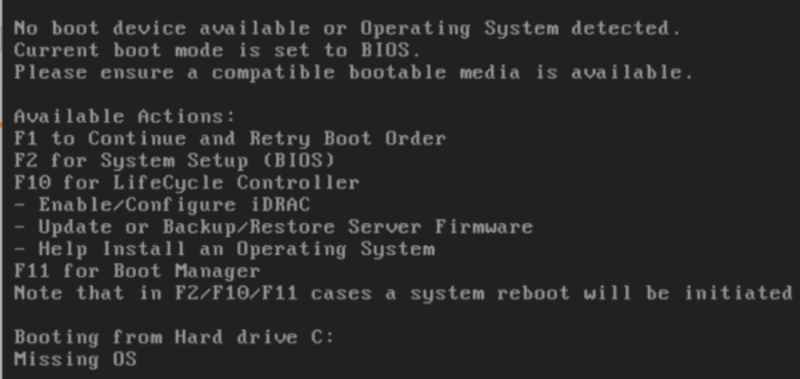
This family of error messages goes by many different names depending on your computer’s manufacturer and operating system. You are in the right place if you are seeing any of the following – no bootable devices found, a bootable device is not found, no boot device available or operating system detected, current boot mode is set to BIOS, no boot device found, boot device not found, reboot and select proper boot device, default boot device missing or boot failed, inaccessible boot device, or a bootable device is not detected.
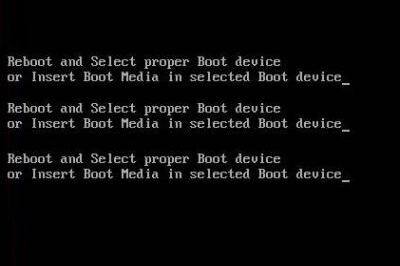
All of these messages point to the same underlying issue – your computer cannot find or access the boot device it needs to start up. The cause can be a software problem, a hardware problem, or a combination of both.
Free Estimates and No Recovery No Charge
If your troubleshooting leads you to the conclusion that your hard drive has failed and data recovery is needed, Data Savers LLC is here to help. Every case starts with a free, no-obligation estimate – and if we are unable to recover your data, you will not be charged. No recovery, no fee – a standard we have upheld for over 25 years.
How to Fix “No Bootable Devices Found”
Fix 1 – Check Your BIOS Boot Order
One of the most common and easily fixable causes of a boot device error is a BIOS boot order issue. This happens when your computer is trying to boot from the wrong device – a USB drive, an external hard drive, or an SD card – instead of your internal hard drive. Start by disconnecting any external storage devices from your computer. Then power cycle your computer, and as soon as the first screen appears look for text indicating which key opens the BIOS setup menu, typically F1, F2, F8, F10, ESC, or DEL. Press that key to enter the BIOS setup menu. Navigate to the boot order or boot priority section. Check that your internal hard drive is listed first in the boot priority order, and if it is not, move it to the top of the list. Press F10 to save your changes and restart. If your internal hard drive was already at the top and you are still seeing the error, the issue is more serious.
Fix 2 – Address File System Corruption
Boot errors frequently occur when your file system becomes corrupted. This can happen for many reasons – losing power mid-way through a Windows update, an improper shutdown, a failing drive, or a software conflict. In these cases your hard drive may be physically fine but the data structure your computer needs to boot has been damaged. To address this, order a replacement hard drive, install a fresh copy of Windows on the new drive, replace the old drive internally, and if you have a recent backup transfer your data from it to the new drive. If you do not have a recent backup or no backup at all, this is the moment to consider how important the data on your old drive is. If there is anything of financial or sentimental significance on it, do not attempt to overwrite or discard the drive. Contact Data Savers LLC first – we may be able to recover your data from it even if the file system is corrupted.
When Troubleshooting Doesn’t Work
If you have worked through both troubleshooting steps and are still seeing a boot device error, it is likely that your hard drive has failed at the hardware level. This means the drive itself, not just the file system on it, is no longer functioning correctly.
This is not the time for further DIY attempts. Continuing to power on a failing hard drive, or attempting to open it yourself, risks causing further damage that reduces the chances of a successful data recovery. The right move is to stop using the device and contact a professional data recovery lab as soon as possible.
Data Savers LLC engineers have over 25 years of experience recovering data from drives that have failed in exactly this way. A boot device error caused by physical hard drive failure is one of the most common scenarios we handle – and in the vast majority of cases, we are able to recover the data our clients thought was gone.
Don’t See Your Error Message Listed?
Boot device errors can present in many different ways depending on your system, manufacturer, and the specific nature of the failure. If your error message is not listed above, do not worry – Data Savers LLC has over 25 years of experience with boot device issues of all kinds. Reach out and let us take a look.
Why Choose Data Savers LLC?
25 Years of Experience – Data Savers LLC has been resolving boot device issues and recovering data from failed hard drives in Atlanta for over 25 years. Our engineers bring deep expertise in both the software and hardware causes of boot failures.
Class 100 ISO-5 Certified Clean Room – When a boot error is caused by physical hard drive failure, recovery often requires work on the drive’s internal components which must be done in a certified clean room environment. Our facility maintains just 100 airborne particles per cubic meter.
Free Estimates No Risk – There is no cost to finding out what we can do for your situation. Reach out, describe what you are experiencing, and our team will give you an honest assessment of your options.
No Recovery No Charge – If we cannot recover your data, you pay nothing. A commitment we have honored for over 25 years.
Still Seeing the Error? Let Data Savers LLC Take It From Here.
If the troubleshooting steps above have not resolved your boot device error, do not keep trying – contact Data Savers LLC for your free estimate and let Atlanta’s most experienced data recovery team assess your situation.